





 Updated
Trading platforms are essential tools, as investors rely on them to access the markets they want to trade. Often, the types of orders and trading strategies available depend on the trading platform’s features and capabilities. This is why traders exploring a MetaTrader 4 guide need to consider platform functionality carefully.
In addition, as markets can move quickly, trading platforms should provide reliable, high-speed connectivity and real-time data to help traders make quick decisions and avoid missing opportunities. These points matter especially for those learning how to use MetaTrader 4 effectively.
These are just some reasons why it is crucial to choose the right trading platform for your needs. Among forex traders, perhaps the most well-known is MetaTrader 4 (MT4).
Curiously, MT4 isn’t the most advanced trading platform – that honour belongs to MetaTrader 5 (MT5), which was released by the developers of MT4 several years later. Since traders are always seeking an edge in the markets, you might assume they would prefer MT5 for its broader feature set.
But that isn’t the case, and in fact, there’s evidence that MT4 is still very much the platform of choice among forex investors. Read on to learn how the platform works and what it offers. We’ll also go through how to start trading with MetaTrader 4.

What is MetaTrader 4 (MT4)? [1]
MetaTrader 4 (MT4) is a market trading platform developed by MetaQuotes Ltd. Since its release in 2005, the platform has grown in popularity among traders, especially forex traders. in
Today, almost 20 years later, MT4 remains the top choice for currency market investors, with many praising its ease of use, range of tools, and useful features.
It’s notable that despite the release of MT5 some years later – a more advanced trading platform catering to a more diverse range of assets and investors – MT4 has remained the most popular choice among forex traders. In the third quarter of 2019, over 90% of forex volume was generated by MT4, although this dominance waned to 74.9% in the fourth quarter of 2021. Still, MT4 may remain the top choice for many forex traders [2]. Its popularity further underscores why so many guides exist on how to use MetaTrader 4 for everyday trading.
What Can You Trade on MT4?
MetaTrader 4 is primarily designed for forex trading. This platform can also offer CFDs on other markets through MT4, most commonly indices and commodities. If you need broader, exchange‑listed, multi‑asset support, MT5 was built for that use case and typically offers wider coverage.
Advantages of using MetaTrader 4
MT4 has struck the right balance between form and function, which many forex traders clearly appreciate. Simply put, trading with MetaTrader 4 gives traders all the essential tools they need to navigate the currency markets efficiently, without unnecessary complexity. MT4 offers everything a forex trader requires in a streamlined, reliable platform designed for smooth execution and effective market analysis.
Simple interface suited for beginners and professionals
If you’re new to MT4, you may be surprised by its appearance. It’s not the sleekest, nor the most modern. In fact, the user interface looks like it came straight out of the 90s!
Despite its dated appearance, MT4 is well-liked among beginners and experienced investors for its ease of use, which allows traders to stream live data, view charts, and place and manage trades.
Furthermore, MT4 is designed with a highly customisable interface, which no doubt adds to its appeal and utility. The interface makes beginners easier to learn and navigate how to start trading with metatrader 4.
Multiple Order Types Covering Different Forex Strategies [3]
MT4 offers several order types that support a range of forex trading strategies. Its straightforward execution system is one of the reasons many traders prefer trading MetaTrader 4 over more complex platforms.
In total, the platform supports three execution modes, two market orders, four pending orders, two stop orders, and a trailing stop. Orders can be set in several ways: via Market Watch, One-Click Trading, or using hotkeys.
While MT4 offers a narrower range of orders than MT5, it is nevertheless sufficient for forex traders, as evidenced by the significant number who choose to stick with the older trading platform.
Wide Range of Technical Indicators and Charting Tools [4]
The trading platform offers robust technical analysis capabilities through its suite of indicators and charting tools.
In addition to the 30 built-in, most widely used technical indicators, the platform offers access to over 2,000 free custom indicators and 700 paid ones. This allows traders to utilise technical indicators that have been honed and tested by other professionals for potentially enhanced outcomes.
Additionally, investors can access 24 analytical objects: lines, channels, the Gann and Fibonacci tools, shapes, and arrows to forecast future market price dynamics. Objects can be manually applied both to charts and indicator windows for greater flexibility.
Finally, to support a range of trading strategies and time horizons, MT4 includes timeframes ranging from 1 minute to 1 month.
Reliable automated trading with Expert Advisor and copy trading [5]
MT4 is built to support modern algorithmic trading trends, making trading with MetaTrader 4 especially appealing for traders who want automation.
The platform allows users to convert proven trading strategies into trading bots known as Expert Advisors (EAs), which can analyse market conditions and execute trades automatically. No programming background is required; traders can simply choose EAs from the Marketplace and implement them directly into their accounts.
In addition to algorithmic trading via an EA, MT4 offers copy trading, allowing forex traders to replicate signals from professional traders. Simply subscribe to the trading signal you want, and your account will trade automatically in accordance.
Alerts and financial news [6]
As currency markets are sensitive to macroeconomic and geopolitical developments, it’s important for forex traders to stay informed about economic news and key events.
To aid traders in this goal, MT4 includes a perpetual news feed that collates the most important financial news from around the world. You can receive real-time alerts for markets of interest, ensuring you can trade with the latest information and updates.
To better understand the differences between MT4 and MT5, read our article, ‘MT4 vs MT5 Comparison – The Difference Between MetaTrader 4 and 5‘ to uncover the specific features and distinctions between them.
How to use MetaTrader 4
How to install and set up MetaTrader 4
You can download MetaTrader 4 on Vantage’s website. Choose from three different desktop operating systems: Windows, macOS, and Linux.
Follow these steps to install MetaTrader 4.
- Start by registering a live account or demo account on Vantage.
- Go to this page and click on the operating system you want to use. Your download will begin.
- Click on the downloaded file to start the installation process.
- Allow changes, agree to the Licence Agreement, and choose settings if needed.
- Click “Next” and follow the on-screen instructions to complete MT4 installation.
Setting up a trading account on Vantage
How to set up a live account
Setting up a live account allows you to trade the markets in real time. Here’s how you can set up a live account on Vantage.
- On the Vantage website, mouse over “Register” in the top right, and then click “Trade Now”.
- Follow the on-screen instructions to register for your live account. You will also need to submit documents for verification purposes.
- We will contact you once your live account is ready.
- Once your account has been funded, log in to MT4 to start trading.
How to set up a demo account
If you prefer to try MT4 on a trial basis without a live account, you can use a demo account.
- On the Vantage website, mouse over “Register” in the top right, and then click “Practice Trading”.
- Follow the on-screen prompts to register for a demo account.
- Provide your details to receive your username and password. Be sure to keep those safe.
- Using your newly generated credentials, you can log in to MT4 to explore the software and start testing out trades.
Overview of the MetaTrader 4 interface on WebTrader
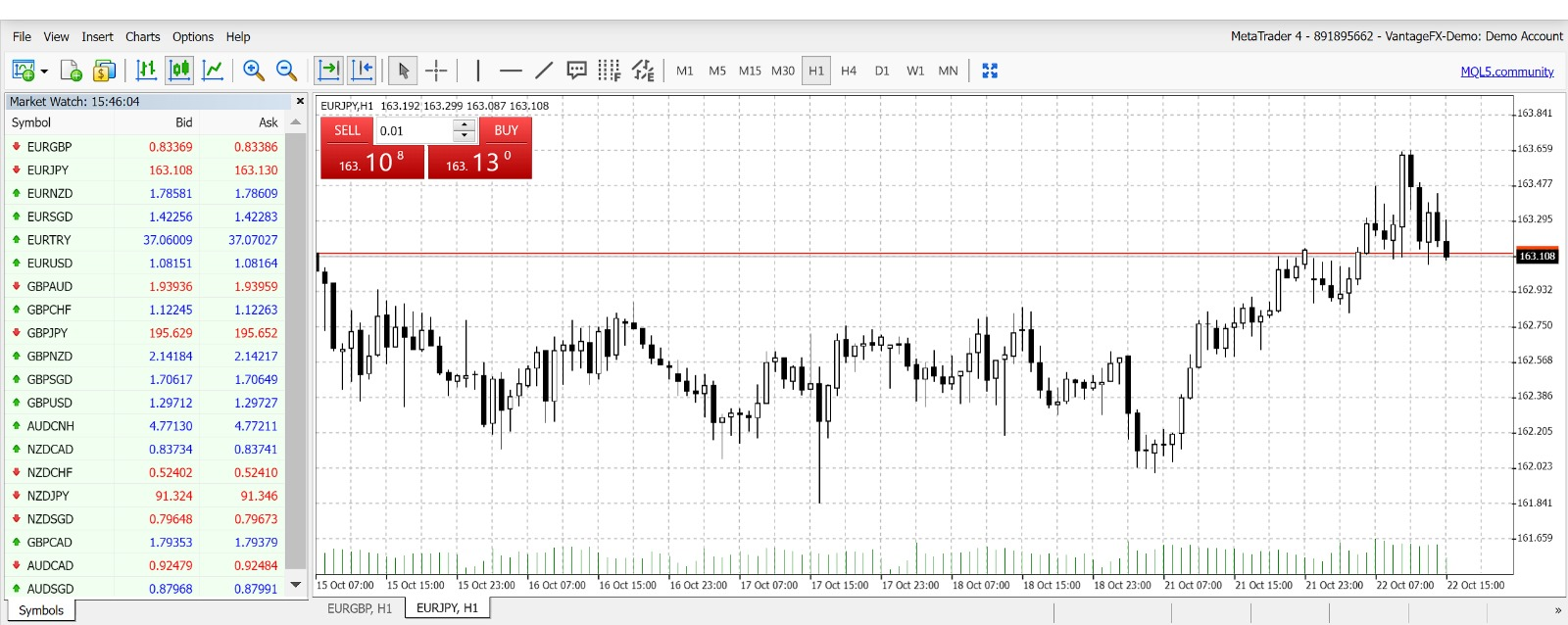
Here’s a screenshot of MT4. Note that we’re using the web browser version, which enables trading from anywhere with an Internet connection.
We’ll go through the interface sections one by one. First, let’s zoom in on the top toolbar.
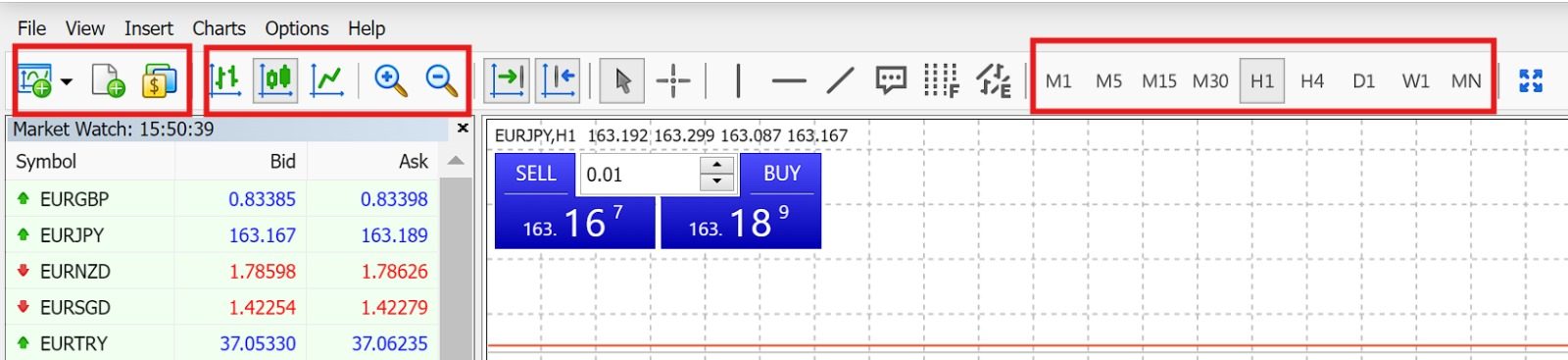
With the first group of symbols (left-most square), you can create a new chart, start a new order, or choose from more markets other than forex. (MT4, while heavily focused on forex, also supports trading of stocks, commodities, and bonds, among others.) We’ll go through each button in more detail later.
In the second group of icons, that’s where you can set different chart types (line, candlestick or bar) and also zoom in and out to better read the chart.
The third group of icons lets you control the chart timeframe. Click the corresponding button to update the price chart to the selected timeframe.
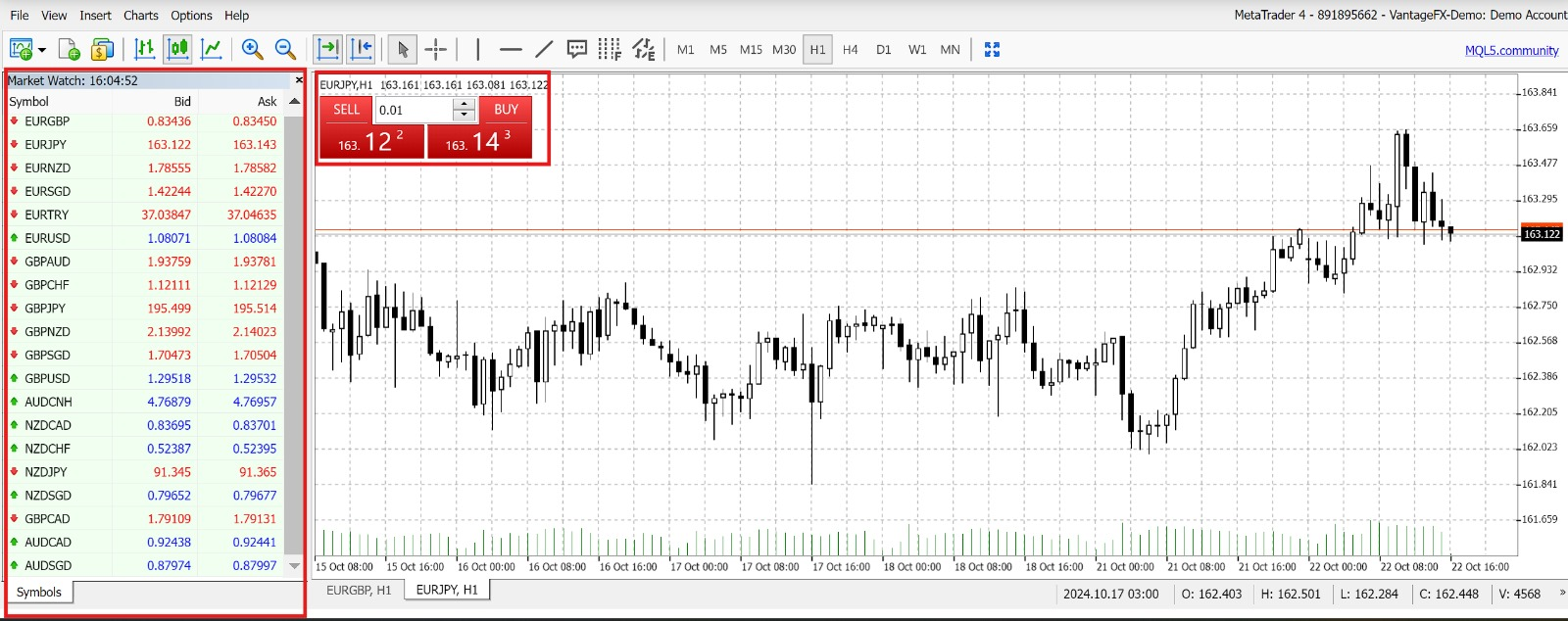
Moving down, the red-outlined area on the left is the platform’s Market Watch, a watchlist of major forex pairs. Toggle this panel open or closed via “View” in the top toolbar.
You can customise Market Watch by right-clicking a forex pair to open the submenu. You can then choose from several operations, such as starting a new order, opening the currency pair in a new window, or hiding/showing the currency pair.
The smaller red square next to Market Watch highlights the trading submenu, which displays the currency pair’s real-time price. You can place a trade in this submenu: enter your trading lot size, then click Buy or Sell, as appropriate.
In the main section of the MT interface, we see the price chart for the currently selected currency pair. This is also the same currency pair displayed in the trading sub-menu mentioned above.
Customising the MT4 interface
One of the most popular features of MT4 is its ease of customisation. The most common customisations are already in the top toolbar, and you can mouse over each button to get a tooltip that tells you what it does.
The majority of customisations are organised in sub-menus, which you can access via the commands above the toolbar. Click each command to open the submenu and its functions.
If you need guidance, click the “Help” command to browse for the answers you seek. There are also several online videos you can refer to for more in-depth guidance.
How to trade with MT4 WebTrader
Earlier, we mentioned that you can place a quick trade on the forex pair you are currently viewing using the trading sub-menu. Besides that option, you can also place a trade using the main toolbar.
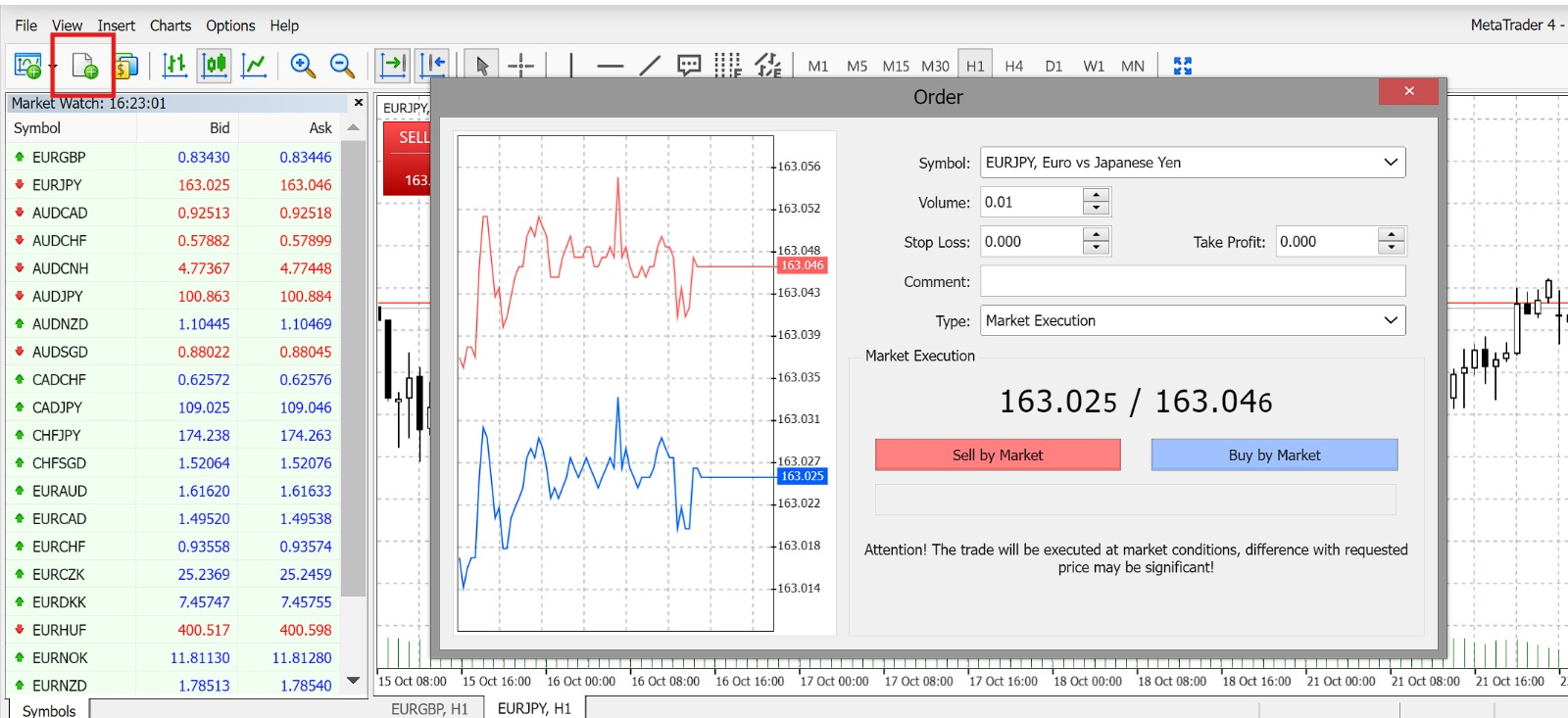
Choose the currency pair you want to trade from Market Watch, then click the “New Order” icon (red square). This will open the order submenu.
Here, you can enter your trade volume and set your stop-loss and take-profit levels. You can also choose between Market Order (which executes immediately at the current market price) and Pending Order (which waits for a desired entry point).
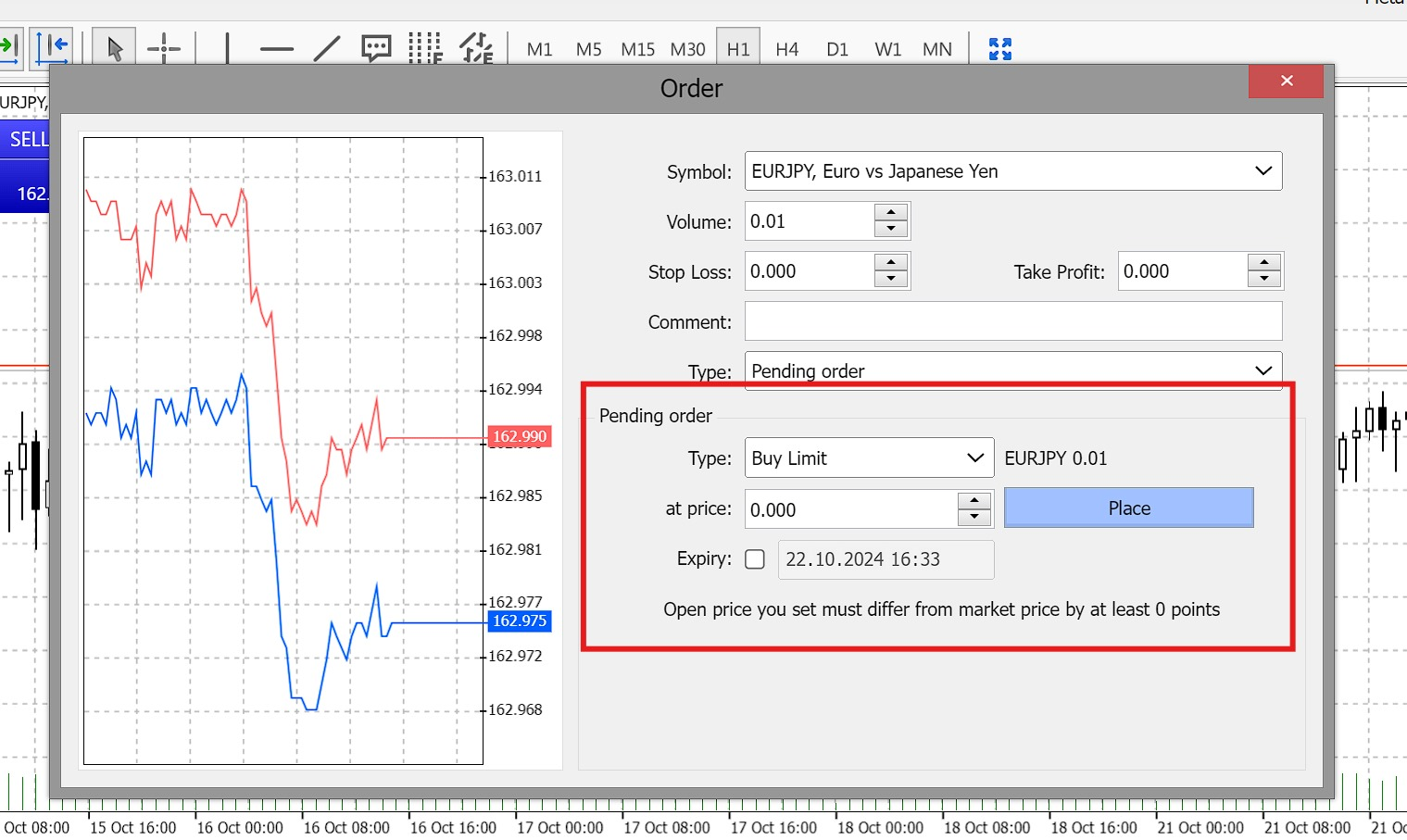
As seen in the screenshot above, choosing Pending Order will call up several new options, including Order Type (Buy Limit, Sell Limit, Buy Stop, Sell Stop), as well as a field for you to set the price at which you want to trade to execute. You can also set an expiry date for your order.
Once complete, click the Place button to submit your order; it will be filled once the specified parameters are met.
How to manage your trades in MT4 WebTrader
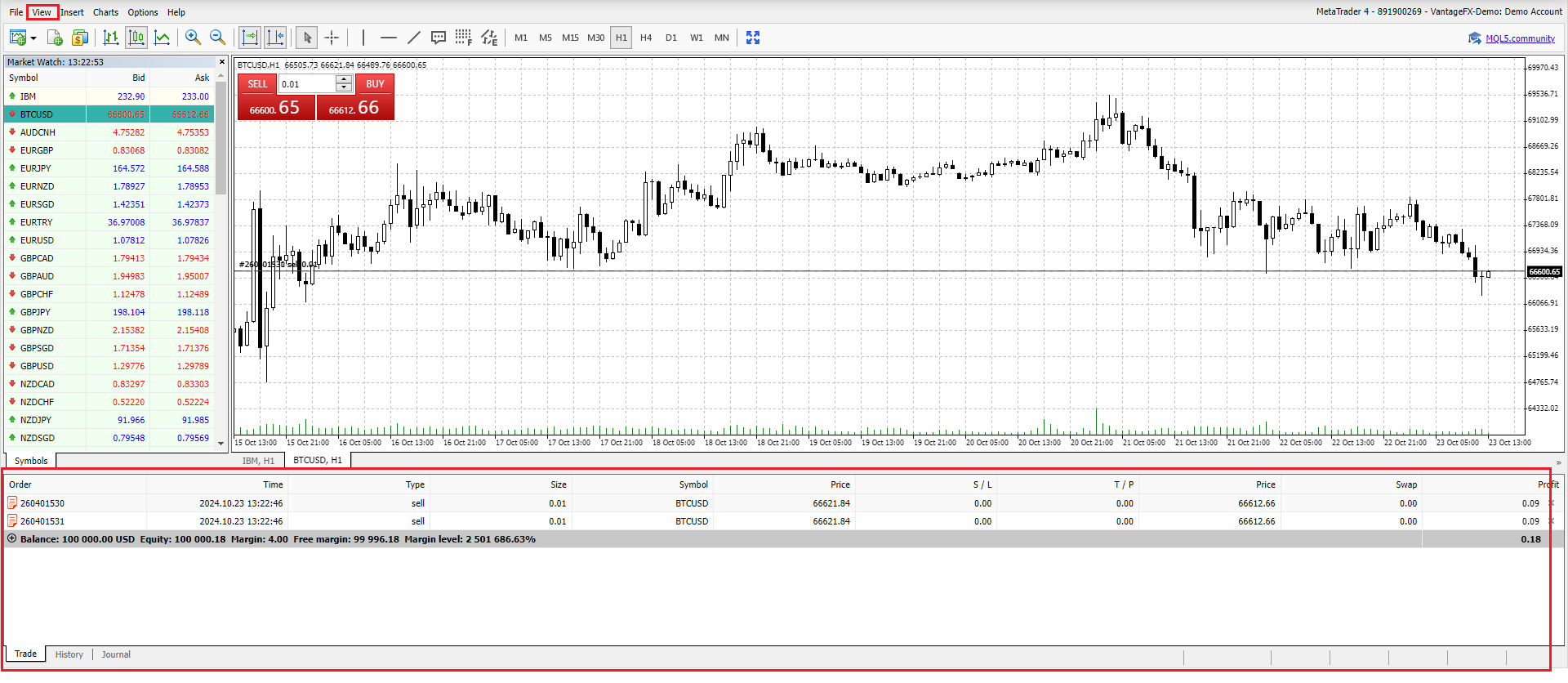
Orders you have entered but not yet executed can be modified or managed. To do so, click “View” in the top toolbar, then “Toolbox”. This will bring up the Toolbox panel at the bottom of the screen.
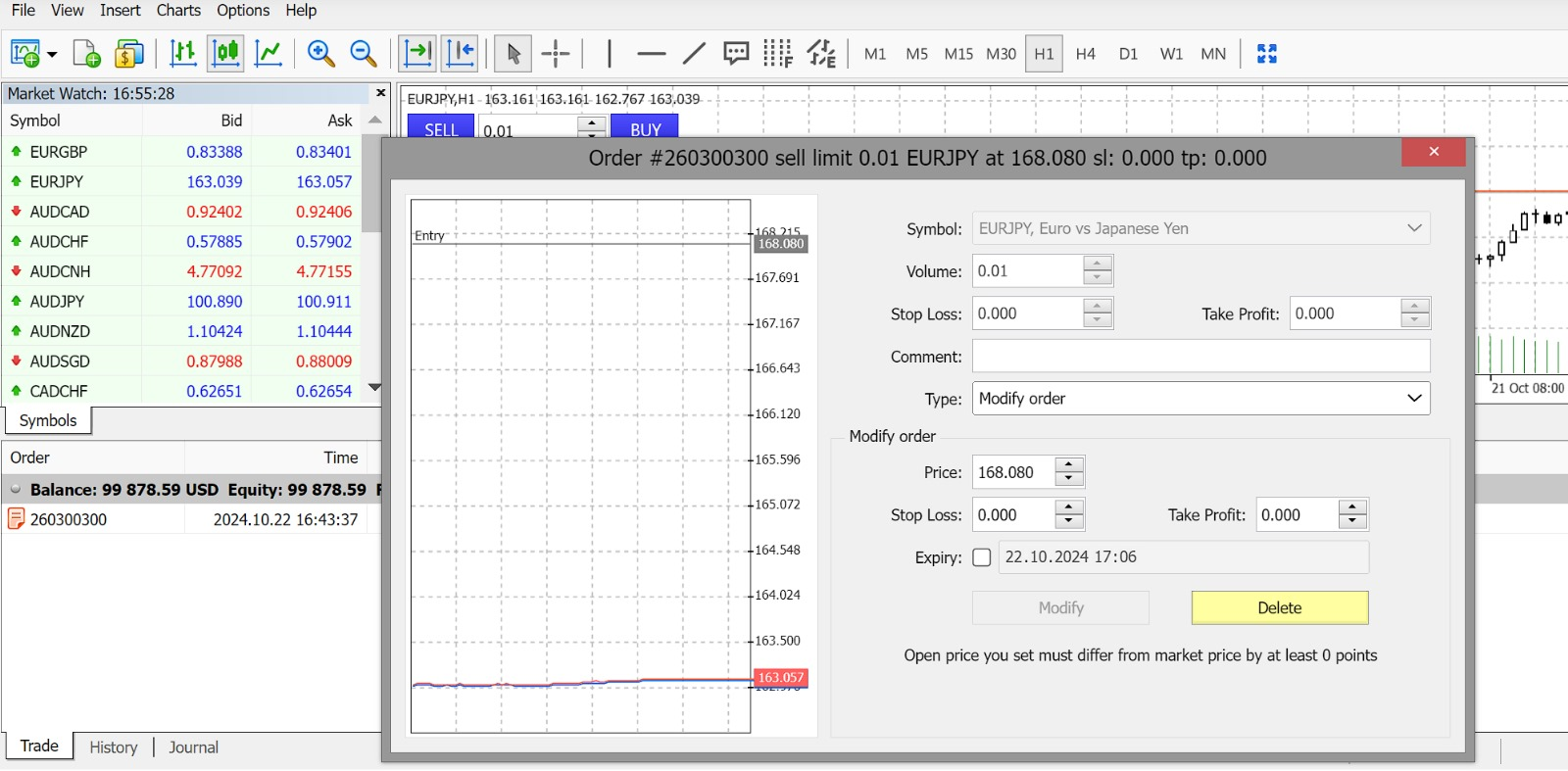
On the “Trade” tab, your pending orders will be listed. Right-click the order you want to change and select “Modify or Delete”.
This will open the order window, where you can make changes to your order.
Using charts and indicators in MT4 WebTrader
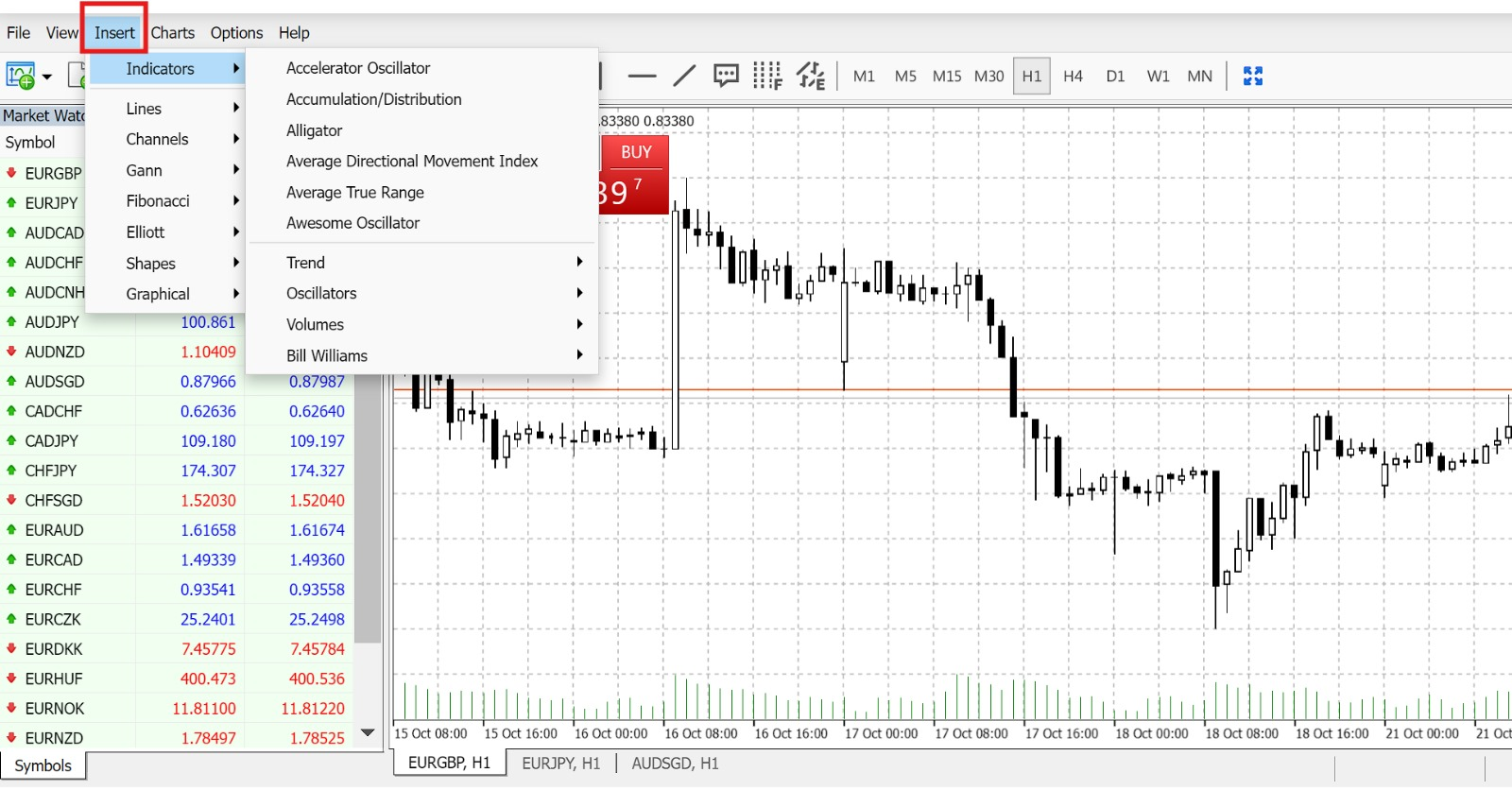
To add technical indicators to your price chart, click “Insert” in the top toolbar, then mouse over “Indicators” to bring up the technical indicators you can use. Select the one you want by clicking on it.
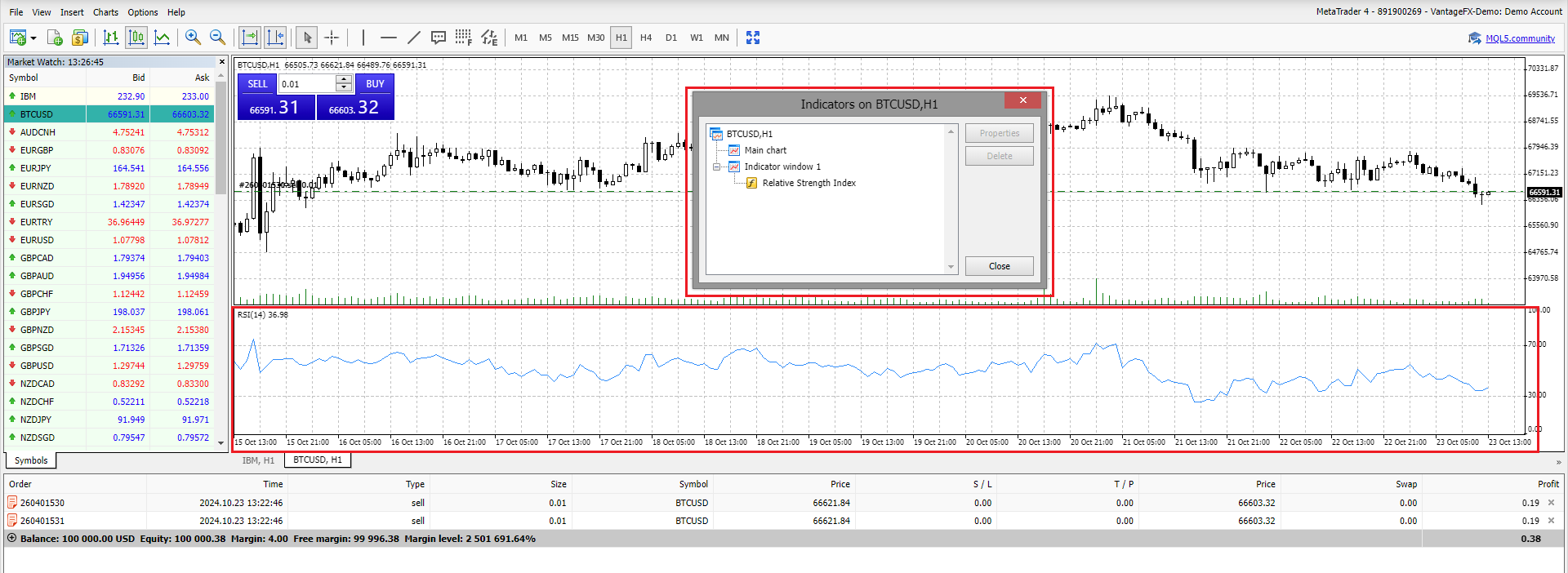
Here, we’ve added the Relative Strength Index (RSI), which appears as a separate panel at the bottom of the screen.
To modify or delete indicators, go to “Chart,” then “Indicators List.” This will open the smaller grey window shown above, where you can select the relevant indicator to modify or delete.
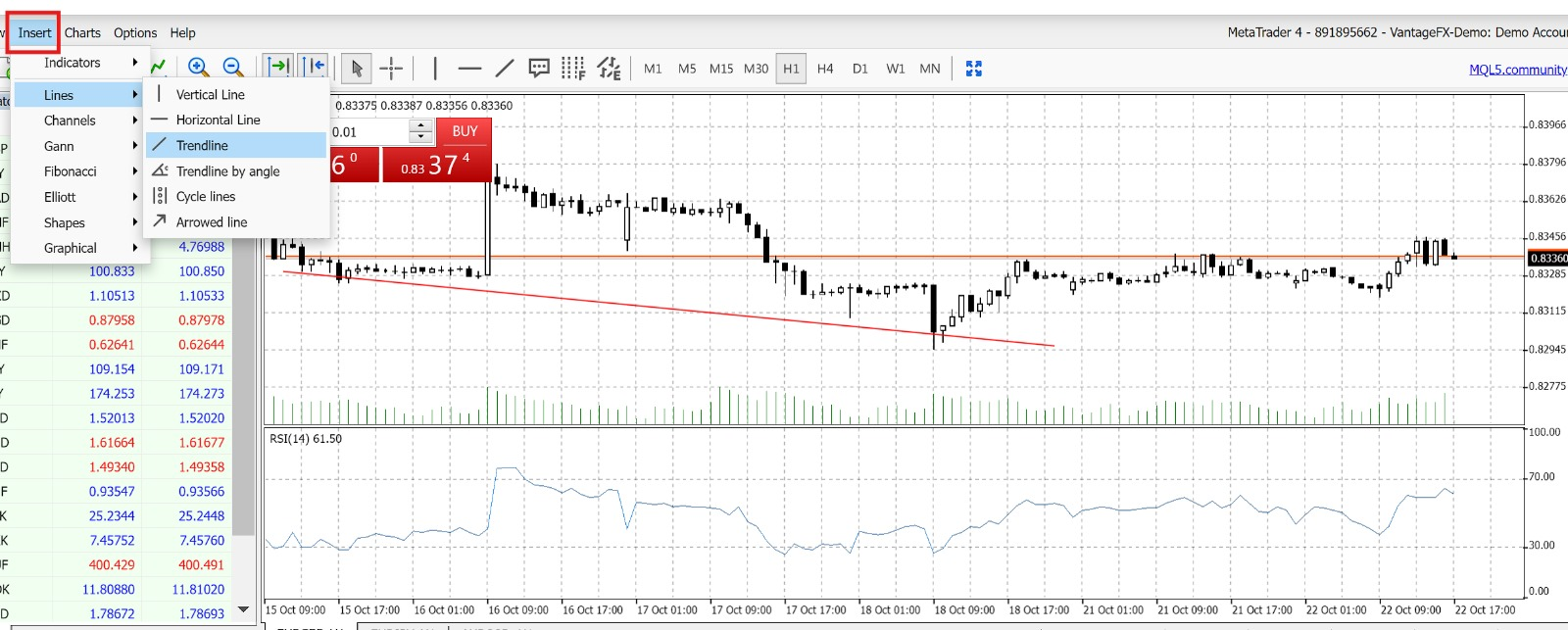
You can do the same with charting objects. In the screenshot above, we’ve added a trendline (the downward-sloping red line). This was done by selecting “Insert” in the top toolbar, then “Lines”, and “Trendlines”.
To delete this drawing, go to “Charts”, “Objects”. Choose “Objects List” to change drawings individually, or “Delete All” to clear your chart and start over.
Automating trades with Expert Advisor (EA)
MT4 supports automated trading through Expert Advisors (EAs), custom scripts that help you execute trades. In some cases, these scripts can also execute trades on your behalf – these are popularly known as trading bots.
Before you can start using EA, there are a couple of steps you need to take, as follows:
- Go to the MetaTrader4 Market to search for the EA you want. You can choose from free or paid EAs, or order up a customised one by visiting the “Freelance” section of the site.
- Download the selected EA and save it to a location you can easily find. If your EA comes as a .zip file, be sure to extract the files first.
- Next, log in to your MT4 desktop app. Then go to “File” > “Open Data Folder” in the top toolbar. This will open up a folder window in MT4.
- Copy and paste your downloaded EA into the MT4 window, then restart MT4.
- After you log in again, go to “View”, “Navigator”, “Expert Advisor” to see your newly downloaded script. Drag it onto the price chart on the right to start the script running.
- If you want your EA to trade on your behalf, be sure to click the “Auto Trading” button on the top toolbar.
Conclusion
After exploring the key features of MT4 and understanding how the platform works, I hope this MetaTrader 4 guide has given you greater confidence to get started. While forex trading can be complex and mastering the process takes time, you can accelerate your learning by practising paper trades using a Vantage demo account. It is an effective, risk‑free way to refine your skills before trading with MetaTrader 4 live.
Trade the most popular forex pairs with low fees and tight spreads, and enjoy capital efficiency with 500 to 1 leverage. Beyond forex, expand your trading potential across multiple sought-after asset classes, including stocks, commodities, bonds, and more.
Experience the benefits of an award-winning broker today. Sign up and start trading with MetaTrader 4 today!
References:
- MetaTrader 4, MetaTrader 4, The Best Forex Trading Platform https://www.metatrader4.com/en/trading-platform.
- Finance Magnates, MetaTrader 4 Or 5. Which One Is The King Of Forex Trading?. https://www.financemagnates.com/forex/metatrader-4-or-5-which-one-is-the-king-of-forex-trading/.
- MetaTrader 4, Trading And Orders. https://www.metatrader4.com/en/trading-platform/orders.
- MetaTrader 4, Technical Analysis. https://www.metatrader4.com/en/trading-platform/technical-analysis.
- MetaTrader 4, Trading Signals. https://www.metatrader4.com/en/signals.