






 Updated
Gold is a top commodity on TradingView. Vantage Markets integrates directly with TradingView. Traders can analyse and execute trades from the chart.
This guide explains the complete step-by-step process.
- Opening the right Vantage account for TradingView
- Connecting the two platforms
- Finding the correct gold symbol
- Reading the chart before trading
- Placing the trade with set risk
- Managing it afterwards
Key Points
- The TradingView chart trading panel connects to just one Vantage account type. That type is TradingView STP. A standard MT4 or MT5 account will not connect in the same way.
- XAUUSD.TV is the gold symbol on TradingView, not XAUUSD
- To connect, find Vantage in the broker list. Then, log in using the same email and password for your Vantage account
- You set the lot size, take profit, and stop loss all in one panel before sending an order. This lets you define your intended stop-loss and take-profit levels before submitting the order, rather than deciding them once the position is already open
Why trade gold on TradingView instead of MT4 or MT5?
MT4 and MT5 are still the go-to platforms for CFD execution. This guide doesn’t change that for traders who like using them. TradingView’s strength is consolidation. Its charting tools, indicator library, and community analysis are all in one spot. When connected to a broker, you can place an order straight from the chart you’re using for analysis. There’s no need to switch to another platform to execute it for a trader who already does most of their gold analysis on TradingView; that removes a step. For a trader who doesn’t, MT4 or MT5 is a straightforward option. You can find more in our general guide to trading gold.
What does the .TV in XAUUSD.TV mean?
TradingView’s symbol search for “gold” or “XAUUSD” shows many results. You’ll see futures contracts. There are different brokers’ feeds. You can find spot price data and CFD feeds linked to brokers. Remember, these are not interchangeable.
The “.TV” suffix shows the feed linked to a broker. Here, it’s Vantage. This broker will place and manage the trade once you choose it. Charting a different XAUUSD symbol won’t link to the trade panel. This is because it isn’t connected to an execution account.
Part 1: Open a Vantage Live Account
If a Vantage live account already exists, skip to Part 2.
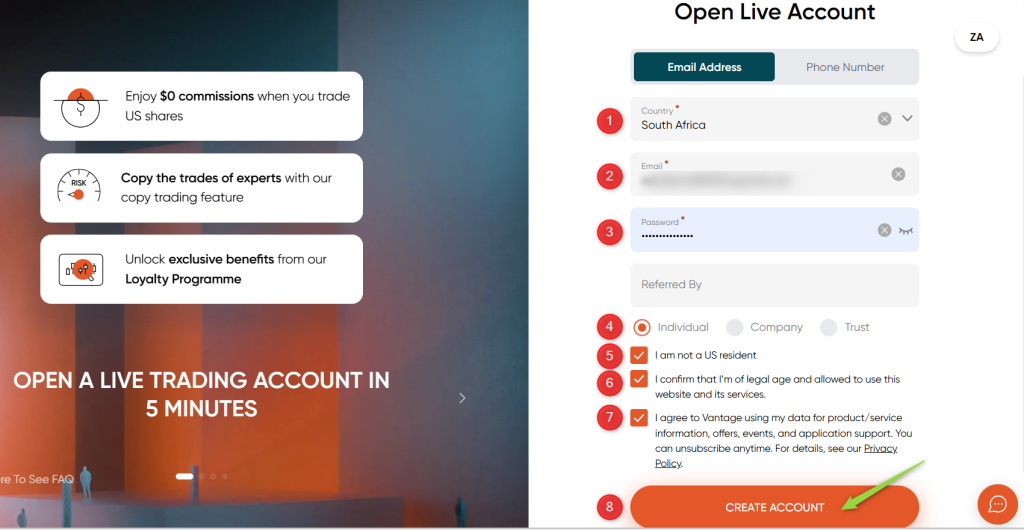
Step 1: Fill in the live account form
Choose your country. Here, we will select South Africa. Then, enter your email and password. Confirm the required checkboxes: not a US resident, of legal age, and data use consent. Finally, click Create Account.

Step 2: Account Confirmation and Verification
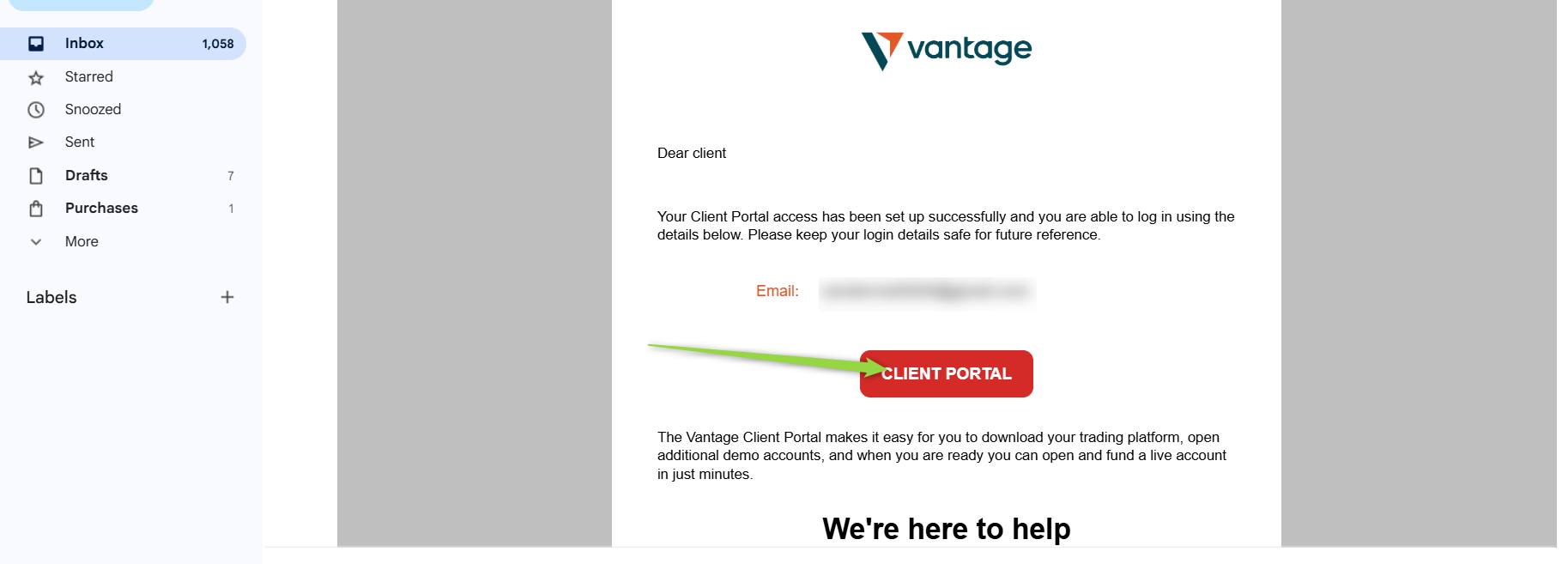
Vantage sends a confirmation email once the account is set up, with a Client Portal link to log in and continue setup.
Part 2: Open a TradingView-linked trading account
A live account on its own isn’t enough. TradingView connects to a specific trading account type, so you need to add this separately from the Vantage client portal. This applies to all Vantage clients, new and existing, even if you already have an MT4 or MT5 account.
Step 3: Go to Accounts
From the Vantage portal, select Accounts from the top menu.
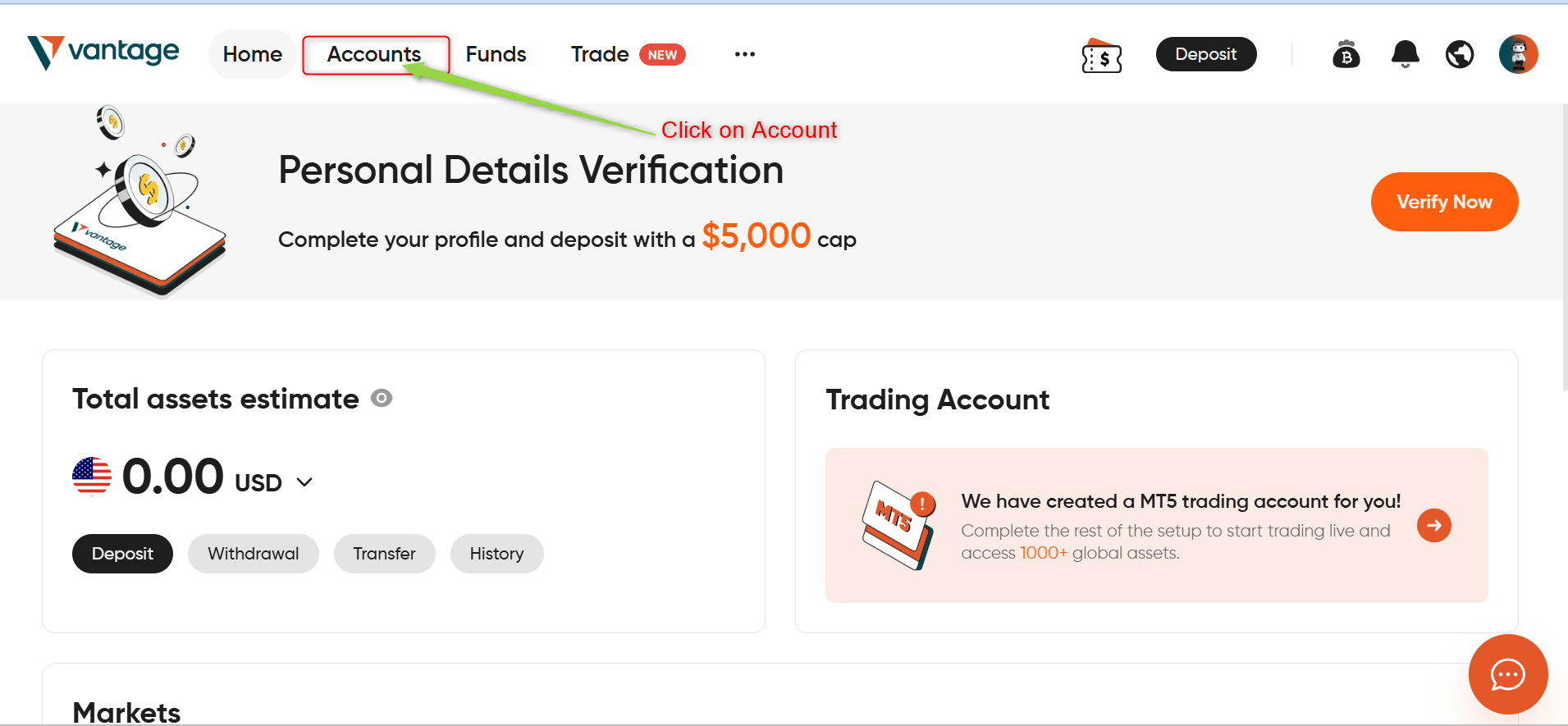
Vantage client portal home page with Accounts highlighted in the top menu
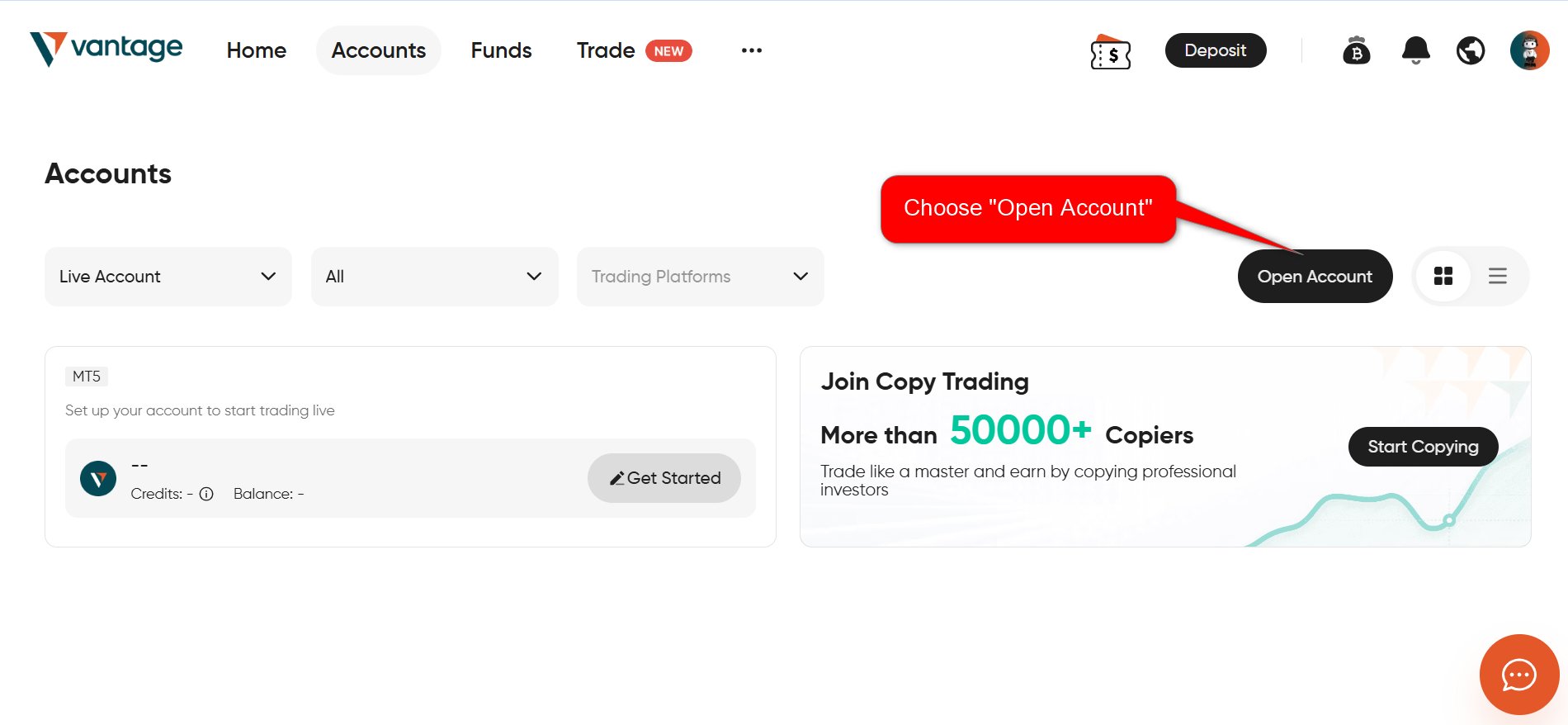
Step 4: Select Open Account
On the Accounts page, select Open Account to start a new trading account.
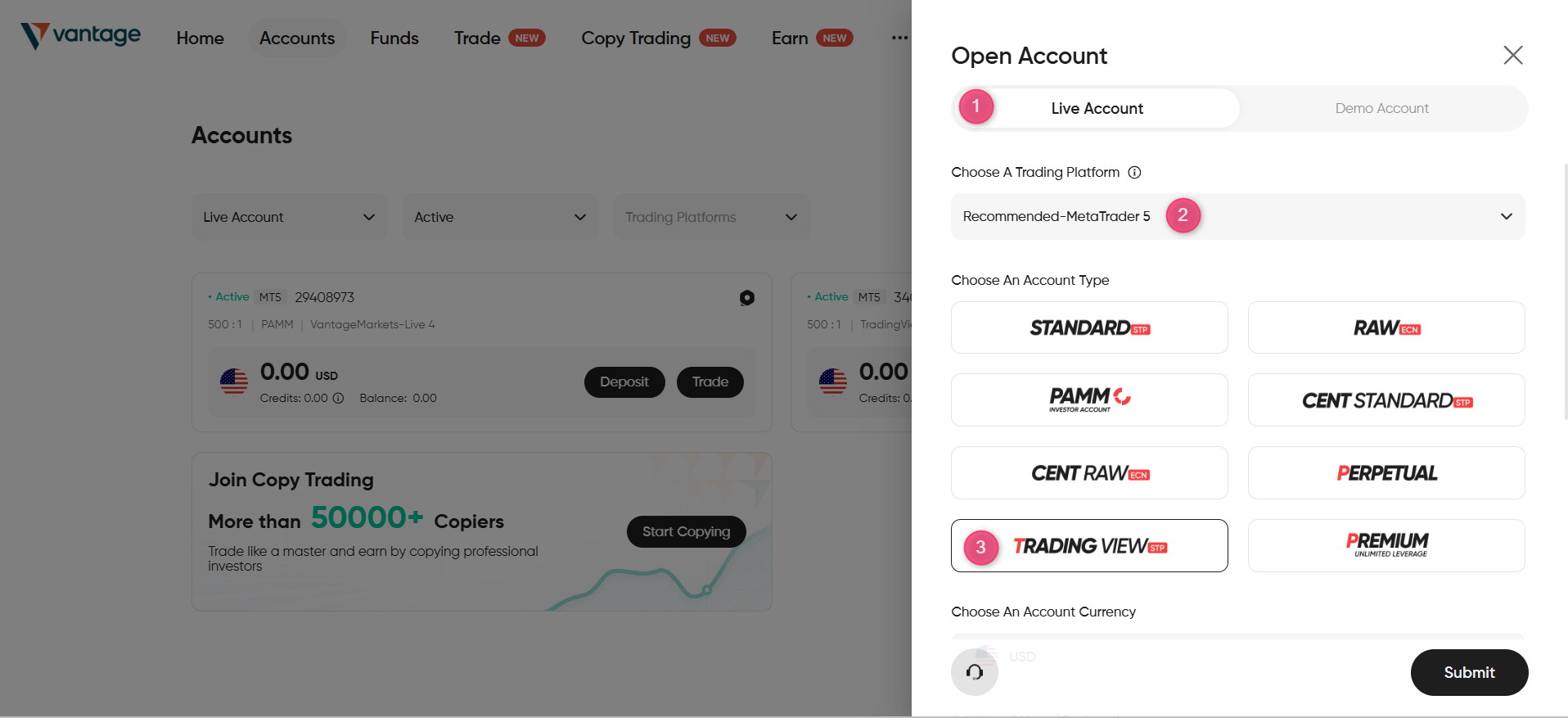
Step 5: Choose the TradingView STP account type
Under Live Account, choose a trading platform, then select TradingView STP from the list of account types, alongside options like Standard, Raw, PAMM, and Cent accounts. This account type is built specifically for TradingView’s chart trading integration.
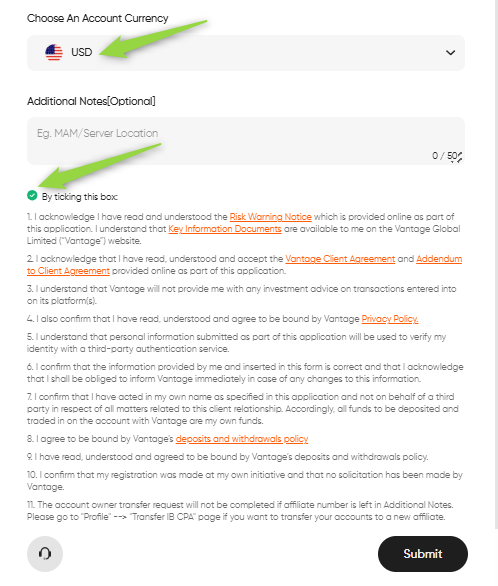
Step 6: Set the currency and submit
Choose an account currency (USD in this example), confirm the required disclosures, including the risk warning notice and client agreement, and select Submit.
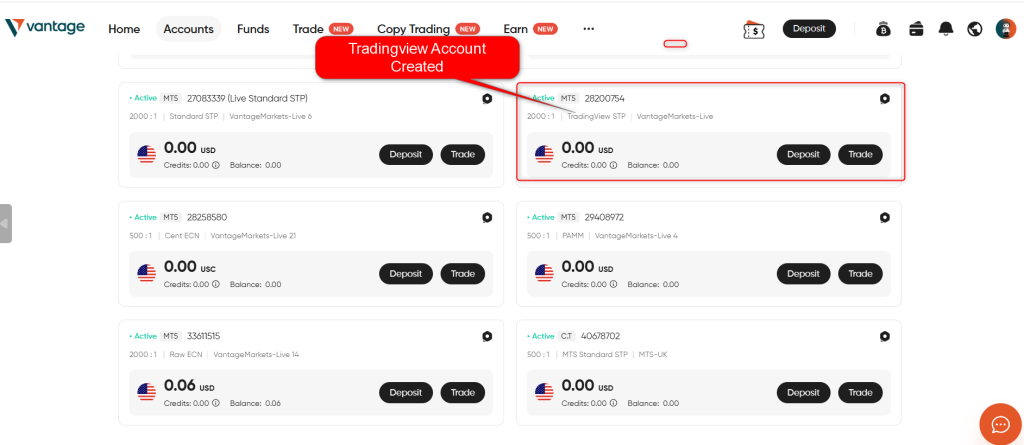
Step 7: Confirm the account was created
The new account appears in the accounts list, labelled TradingView STP, sitting alongside any other account types already open. The new TradingView account has a zero balance until you fund it.
Part 3: Connect your Vantage account to TradingView
With the trading account in place, the connection happens in TradingView, not in the Vantage portal.
Step 8: Open the broker list
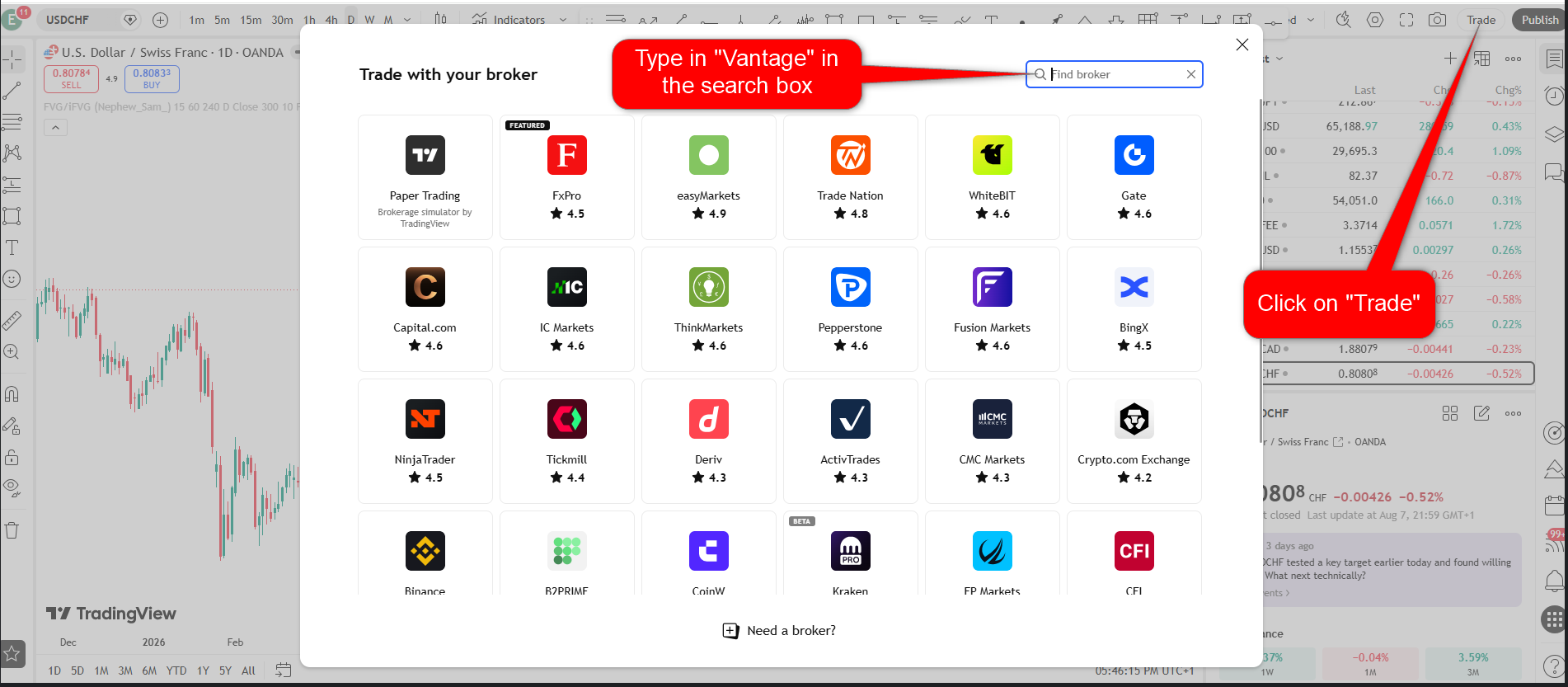
On a TradingView chart, select Trade in the top toolbar, then search for Vantage in the broker search box. TradingView supports a long list of brokers, so searching by name is faster than scrolling.
Step 9: Select Vantage
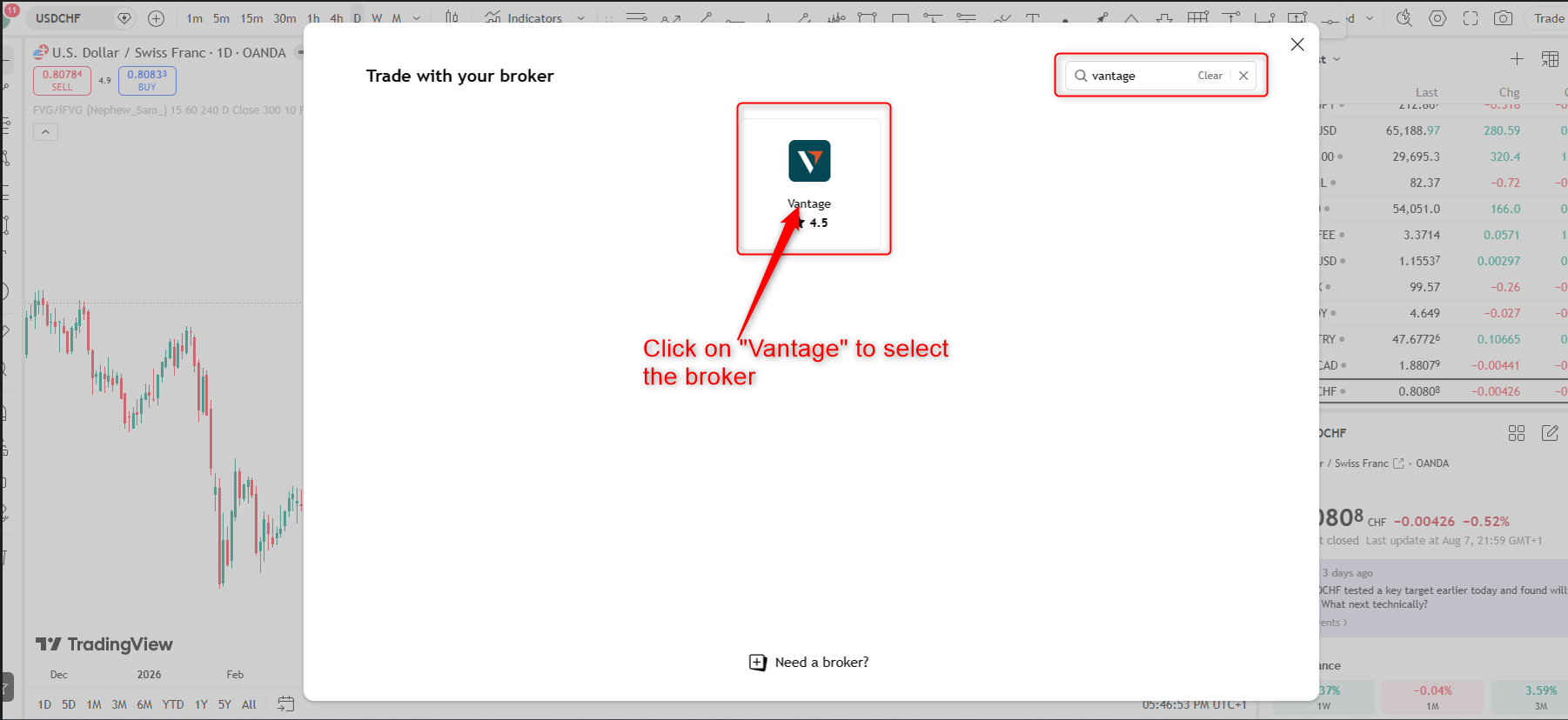
Choose Vantage from the search results.
Step 10: Start the connection
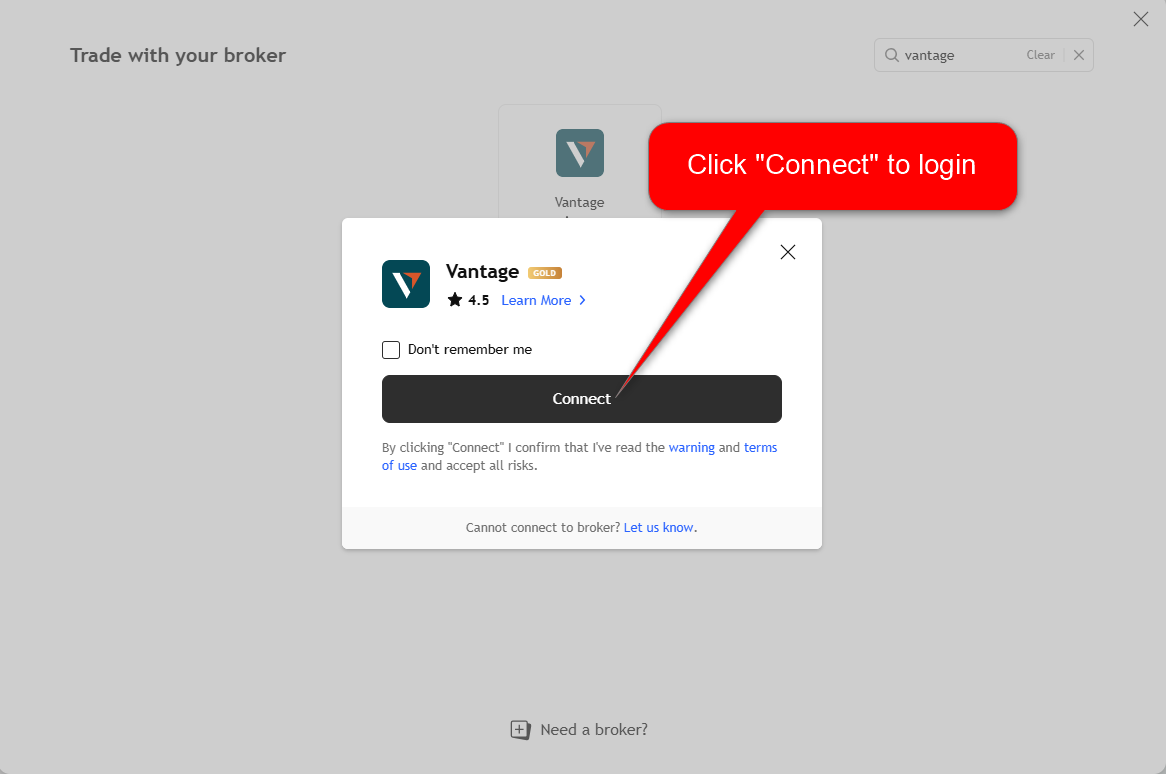
Select Connect to begin logging in.
Step 11: Log in with the Vantage account
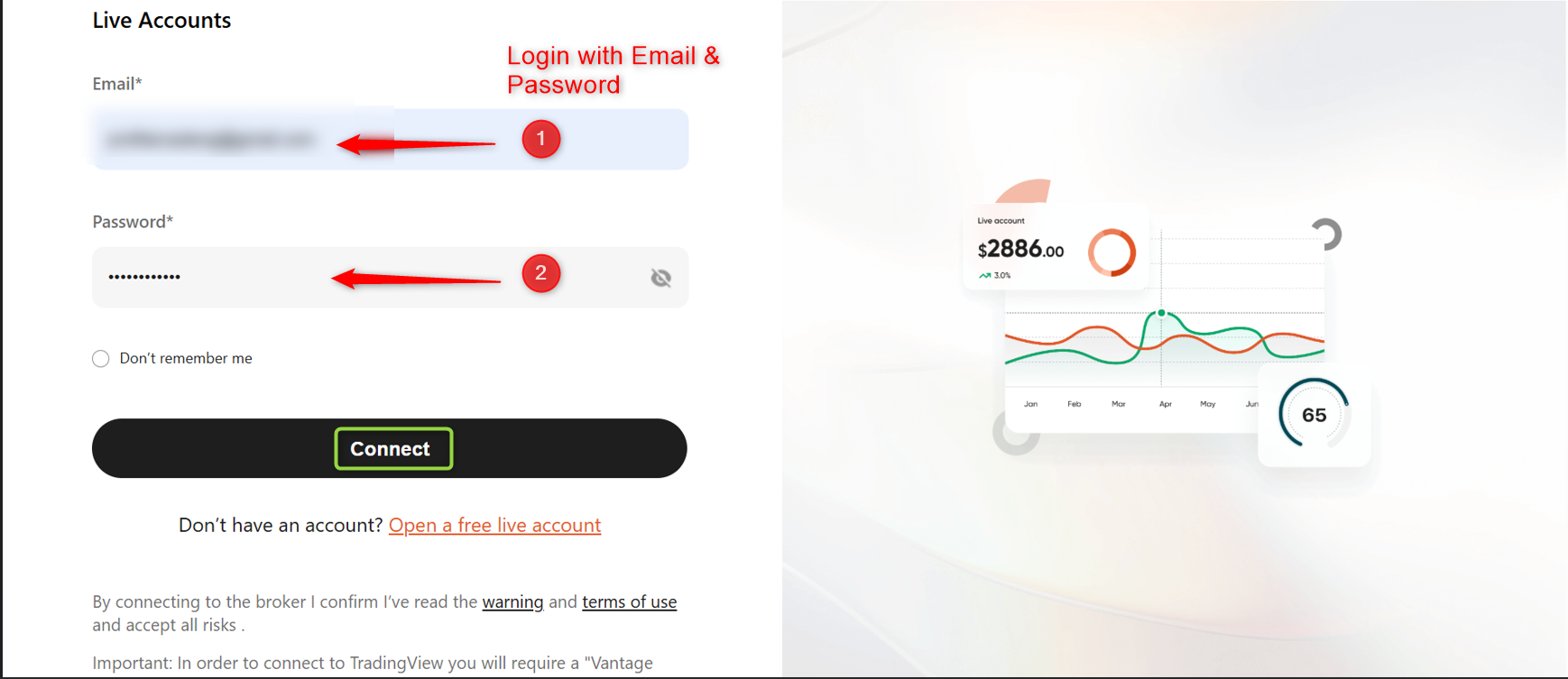
Enter the same email and password used for the Vantage account, then select Connect to finish linking the two platforms. Once connected, TradingView remembers the login for future sessions unless you manually disconnect it.
Part 4: Find and read the XAUUSD.TV gold chart
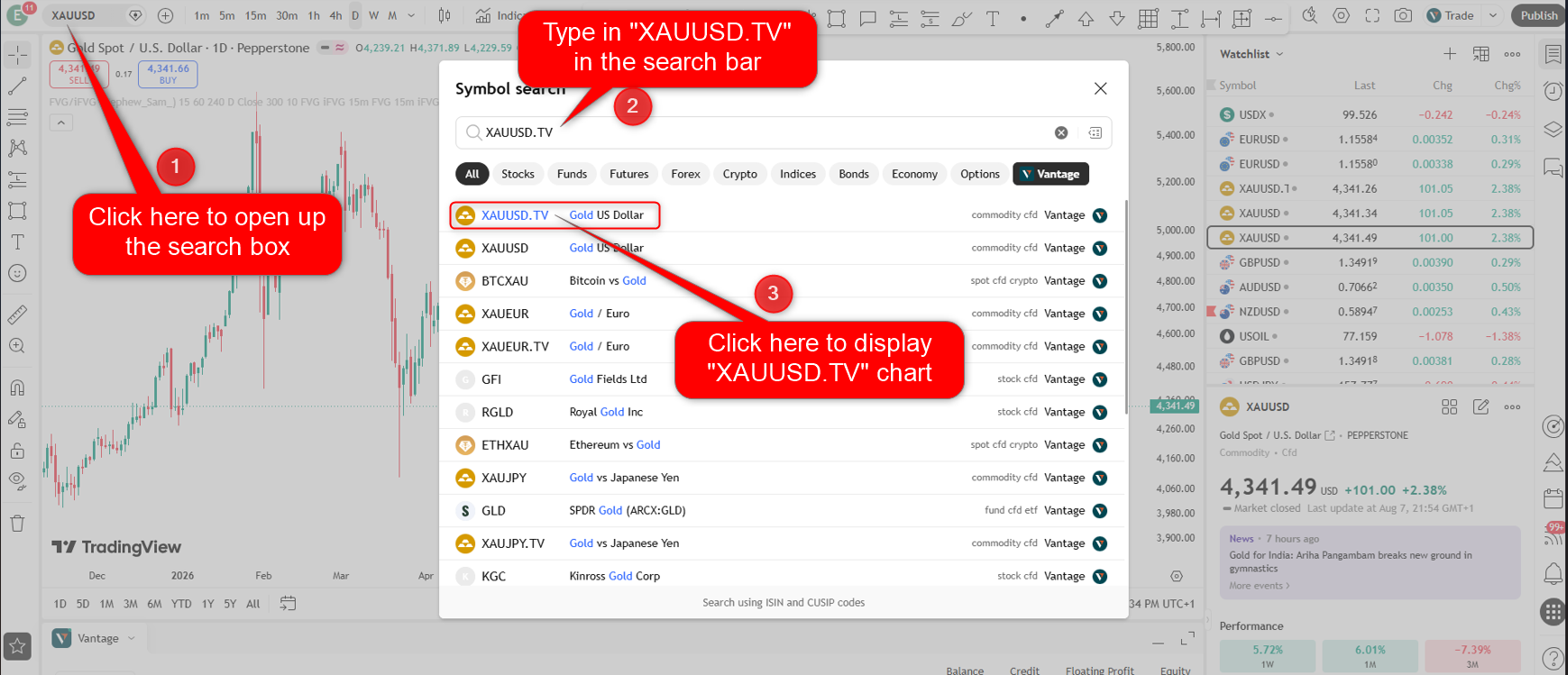
Step 12: Search for XAUUSD.TV
Select the symbol search box and type XAUUSD.TV directly rather than searching “gold” or “XAUUSD” alone, to avoid loading an unconnected feed by mistake.
Step 13: Confirm the chart is active
Selecting the symbol loads the live XAUUSD.TV chart, with the current bid and ask visible in the top-left price panel.
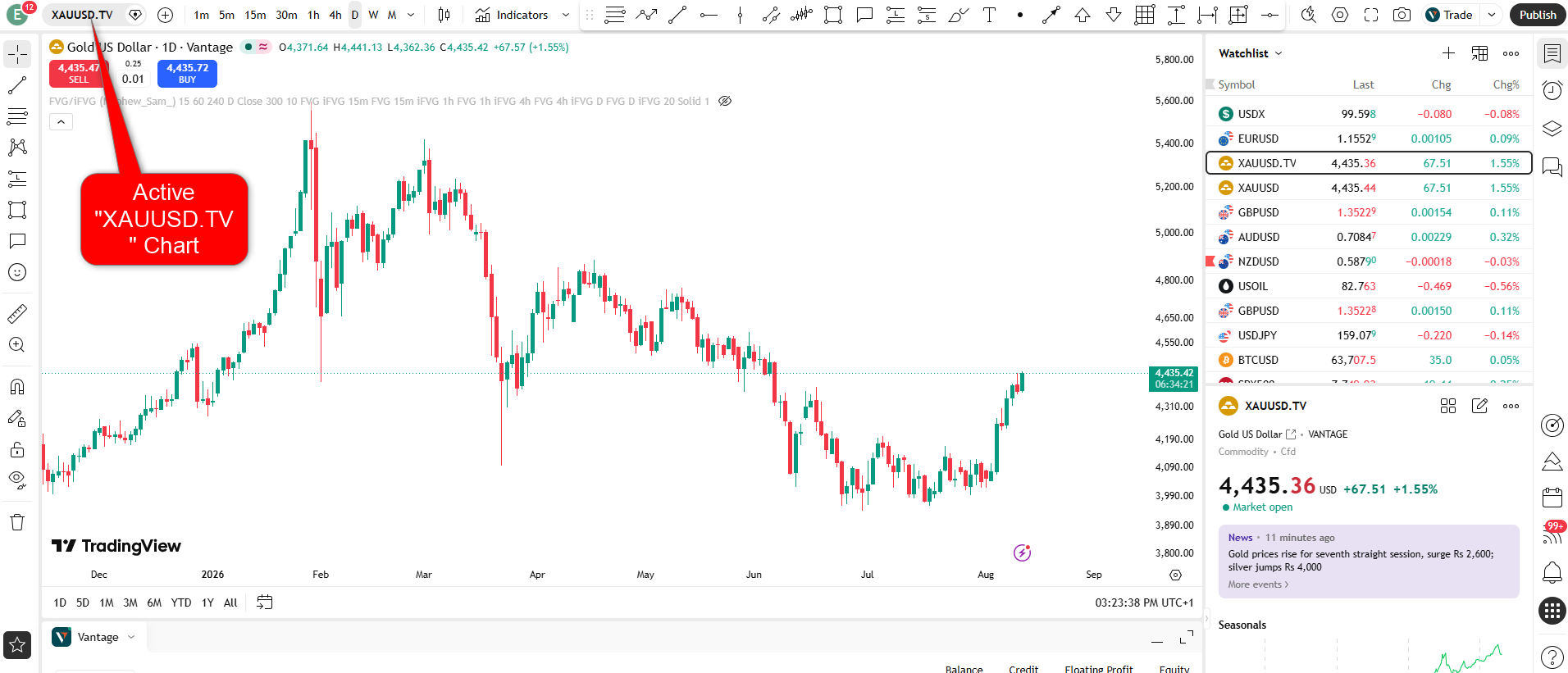
Before placing anything, it’s worth actually looking at the chart rather than jumping straight to the trade panel. A few things worth checking on a gold chart specifically: the current spread between the sell and buy price shown top-left, since gold spreads can widen noticeably around scheduled announcements or outside of the London and
New York sessions; recent price structure, since gold tends to move in sharper, more directional runs than range-bound forex majors during high-volatility periods; and the timeframe selected, since a daily chart and a 15-minute chart of the same instrument can suggest very different setups.
None of this replaces a trader’s own analysis, but skipping it and going straight to order entry is a common way to end up trading a level that no longer makes sense five minutes later.
Part 5: Place a gold trade with defined risk
With the account connected and the correct symbol loaded, the trade panel handles order entry directly from the chart.
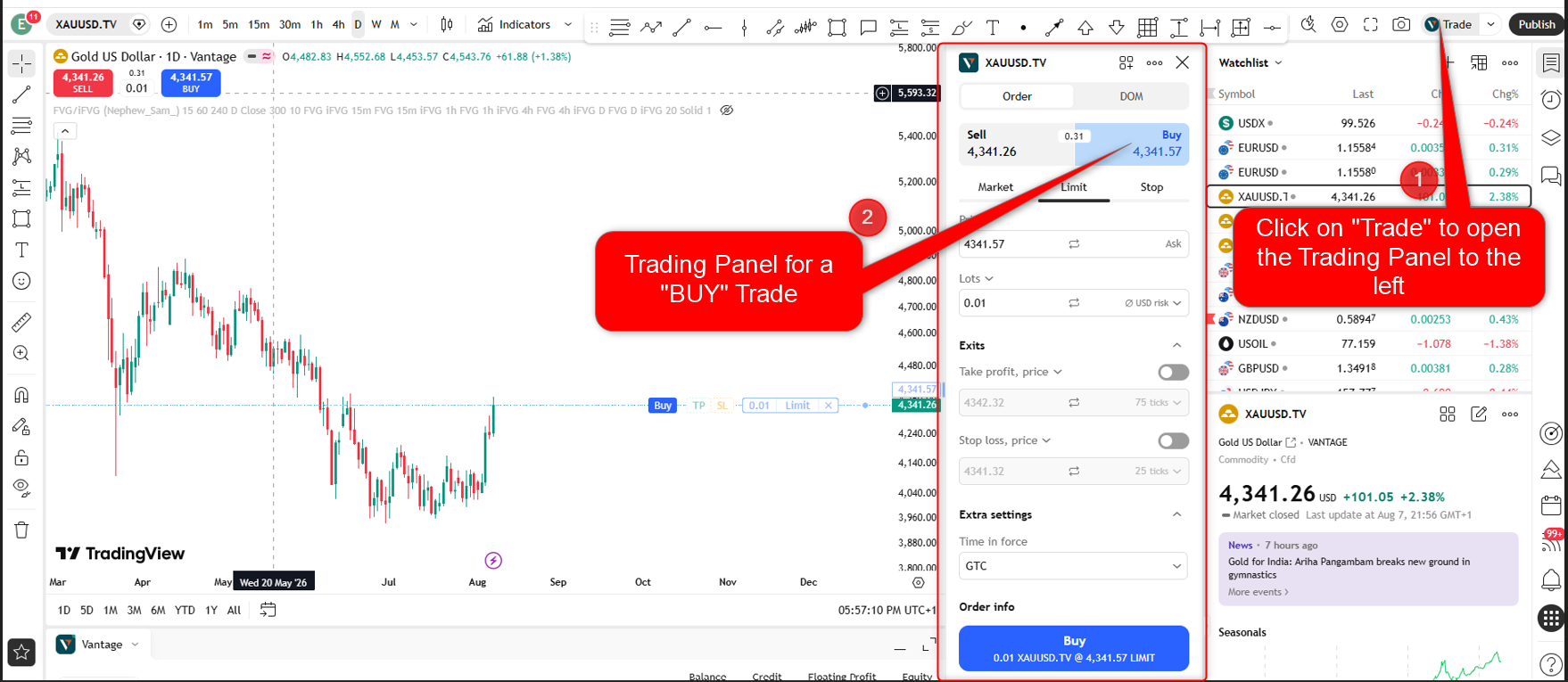
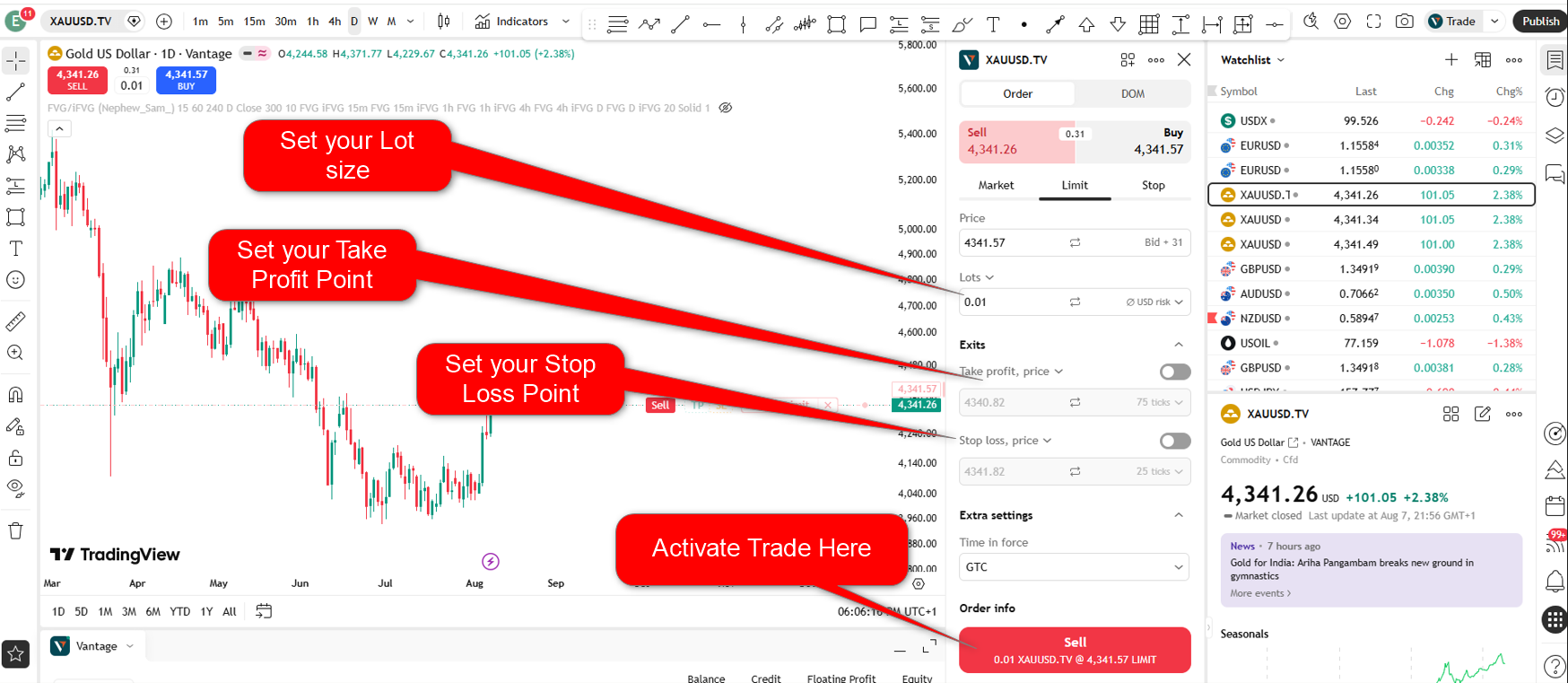
Step 14: Open the trade panel
Select Trade in the top toolbar to open the panel. It shows both sides of the market at once: the red Sell price and the blue Buy price.
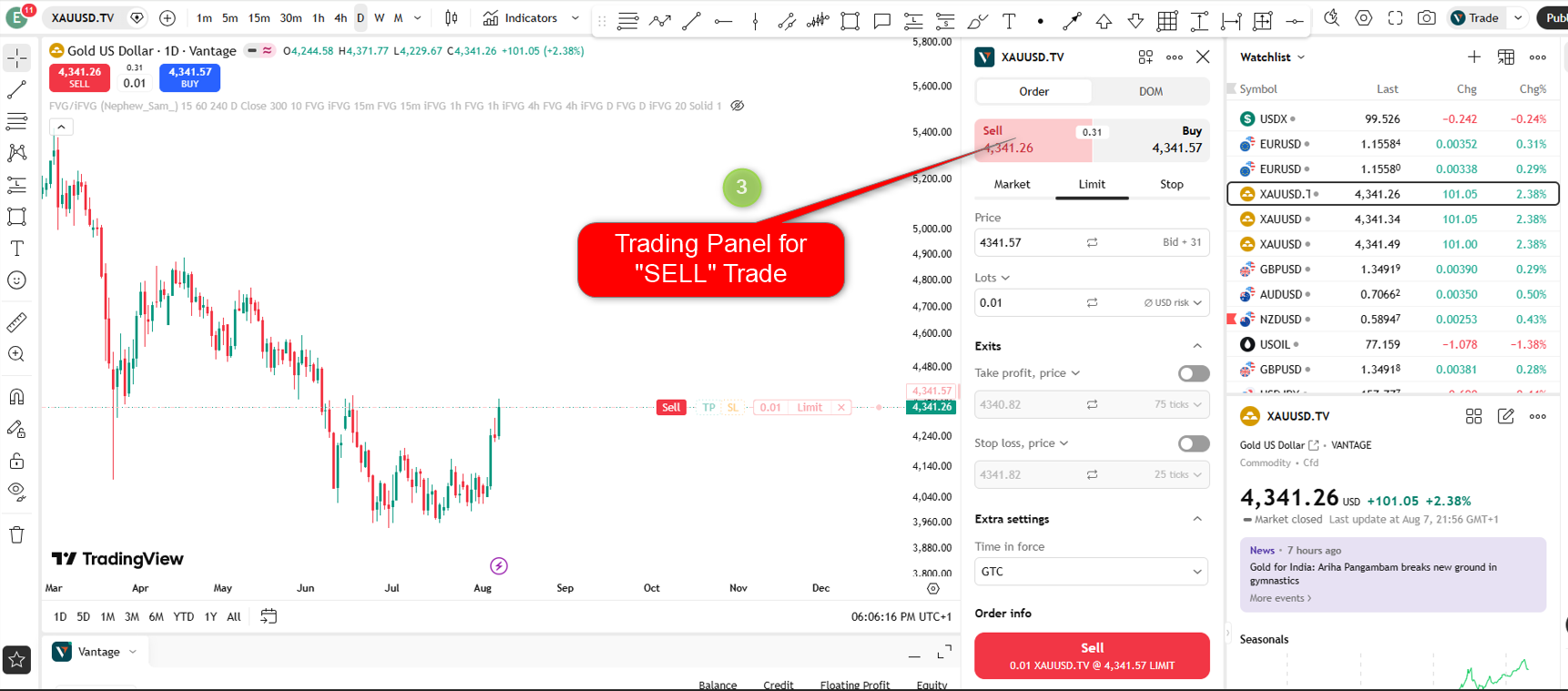
Step 15: Note both sides are available
The same panel supports a Sell order. Which side to use depends entirely on a trader’s analysis; the example shown here is for interface illustration only, not a trade recommendation.
Step 16: Set the trade parameters and confirm
Set the lot size, then optionally toggle on a take profit and stop loss price before sending the order with the Buy or Sell button.
You can also add or adjust both exit levels after the position opens. Setting them upfront lets you define your intended exit levels before submitting the order, though the actual execution price, and therefore the actual loss, may differ due to market conditions, gapping, or slippage.
A position size calculator can help estimate a position size based on factors such as account balance and stop distance before this step.
Managing an open gold position
Placing the trade isn’t the end of the process. You can monitor, adjust, or close an open XAUUSD.TV position on the TradingView chart where you opened it. It appears as a line. This line shows the entry price.
Your current profit or loss updates in real time. You can easily adjust stop-loss and take-profit levels. Drag them on the chart. You can also edit them in the positions list. To close a position, use the trade panel. Select the opposite action or click the close button next to the open position.
Gold prices can move significantly in response to economic data and central bank news. Open positions may therefore be exposed to significant price movements, particularly during periods of heightened volatility. Our forex risk management guide covers key topics. It covers principles, position sizing, and stop-loss placement. It also discusses correlation risk. These apply to gold CFDs and currency pairs.
What makes gold different to trade from other instruments?
Gold behaves differently from many forex pairs. You should know these differences. They matter before you make your first trade. It reacts strongly to US dollar strength and inflation data. It also responds to changes in risk sentiment. Sometimes, its intraday ranges are bigger than those of major currency pairs.
Liquidity conditions and spreads can vary throughout the trading day, and spreads may widen during periods of lower liquidity or heightened volatility, including outside the main London and New York sessions. Major scheduled events can also cause this change.
This isn’t just about trading gold on TradingView; it applies to gold CFDs on any platform. So, it’s important to handle position sizing for gold as carefully as you would for a forex pair. The order placement works the same way, but that doesn’t mean you should take less care.
Frequently Asked Questions
What account type do I need to trade gold on TradingView with Vantage?
To open a TradingView STP account, go to the Vantage client portal and open an account; a standard MT4 or MT5 account cannot connect to TradingView’s chart trading panel. The TradingView STP account type is designed specifically for that integration.
Why does the gold symbol end in .TV?
The .TV suffix indicates the TradingView feed linked to a broker. It shows the feed associated with the execution account, in this case Vantage. Using XAUUSD without .TV may display a data feed without a linked execution account.
Do I need a separate TradingView account as well as a Vantage account?
Yes. TradingView and Vantage are separate platforms with separate logins. You need a TradingView user profile to use the charts, and a Vantage account to place trades, specifically the TradingView STP type to enable execution from TradingView.
Can I set a stop loss and take profit when trading gold on TradingView?
Yes, both stop loss and take profit are available in the trade panel next to the lot size. You can set them before sending the order or add them later from the open position.
Can I close a gold position from TradingView, or do I need to switch platforms?
You can close a position from the same chart where you opened it, using the trade panel. You don’t need to switch to MT4, MT5, or the Vantage portal.
To open a TradingView STP account, go to the Vantage client portal. Click on Accounts, then select Open Account. A standard MT4 or MT5 account can’t connect to TradingView’s chart trading panel. The TradingView STP type is designed just for that integration.
Why does the gold symbol end in .TV?
The “.TV” suffix shows the TradingView version of the Vantage feed. This is the version where trades are executed once the accounts are connected. If you search for “XAUUSD” without it, you might see a different feed. This could be a data-only symbol without a linked execution account.
Do I need a separate TradingView account as well as a Vantage account?
Yes. TradingView and Vantage are separate platforms with separate logins. To use the charts, you need a TradingView user profile. You need a Vantage account. It must be the TradingView STP type to place trades. The Connect step links the two.
Can I set a stop loss and take profit when trading gold on TradingView?
Yes, both are available in the trade panel next to lot size. You can set them before sending the order or add them later from the open position.
Can I close a gold position from TradingView, or do I need to switch platforms?
You can close it from the same chart where you opened it, using the trade panel. You don’t need MT4, MT5, or the Vantage portal.
Is trading gold on TradingView riskier than on MT4 or MT5?
The underlying CFD is the same, although trading conditions, leverage, costs, and execution can vary by account, product, and platform. TradingView just provides a different interface for the same CFD, not a new product. What changes is the platform used to view charts and send orders. The market being traded is the same, while applicable trading conditions and leverage depend on the account and product.